Install on Windows
This takes about five minutes. You install the app here, then pick your printer and add the extension.
Before you start
Section titled “Before you start”- You have the Windows kit from Download.
- Some pictures below were taken with build 1.1.0. Where one shows 1.1.0, your files say 1.1.1.
Unzip the kit
Section titled “Unzip the kit”A zip is a folder squeezed into one file. Windows cannot run the installer from inside it, so take the folder out first.
-
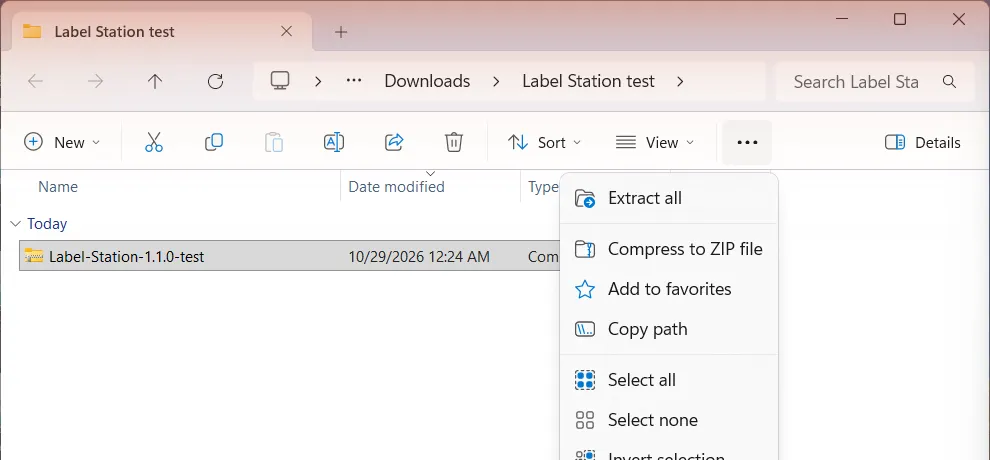
Open File Explorer and go to your Downloads folder. You see Label-Station-1.1.1-test with a zipper on its icon.
-
Click the zip once. Click the three dots at the right end of the toolbar and choose Extract all.
-
Leave Show extracted files when complete ticked and click Extract. It takes a few seconds.
-
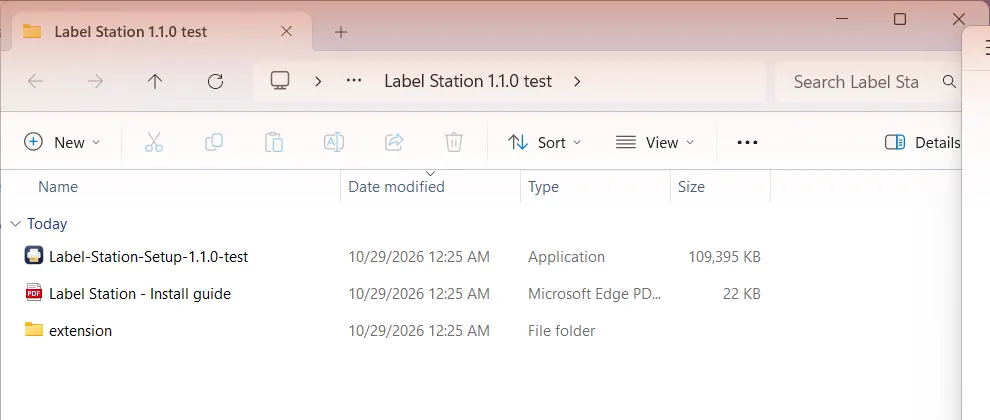
Open the Label Station 1.1.1 test folder inside. You see the installer, the extension folder and the install guide.
Install the app
Section titled “Install the app”-
Double-click Label-Station-Setup-1.1.1-test.
-
Windows may show a blue box called Windows protected your PC. It says it does not recognise the publisher, which is expected for a test build. Click More info, then click Run anyway.
-
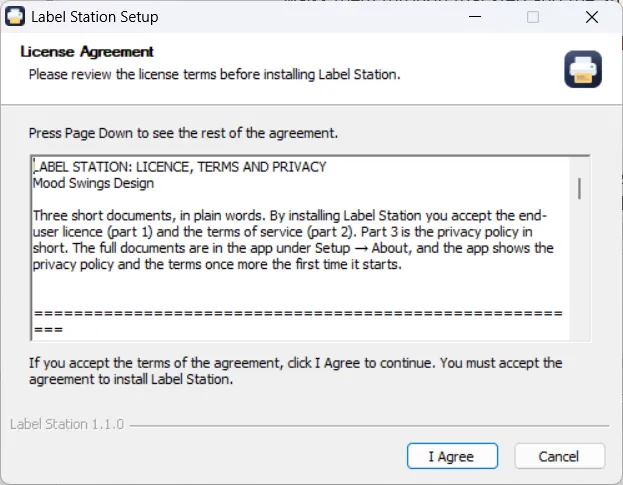
On the License Agreement page, read as much as you like, then click I Agree.
-
On Choose Installation Options, leave Only for me selected and click Next. No administrator password is needed.
-
On Choose Install Location, leave the folder as it is and click Install. A progress bar runs for about half a minute.
-
Leave Run Label Station ticked and click Finish. The app starts.
The first start
Section titled “The first start”-
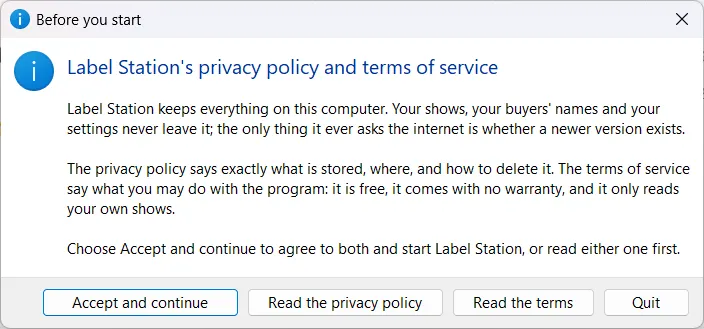
A box called Before you start shows the privacy policy and the terms of service. Click Read the privacy policy or Read the terms if you want to see them first, then click Accept and continue.
-
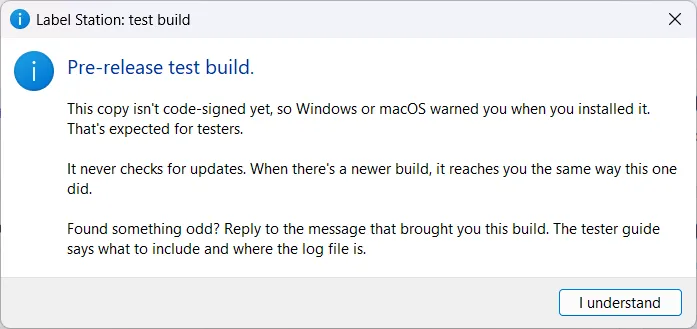
A second box says this is a pre-release test build. Click I understand. You see it once per computer.
-
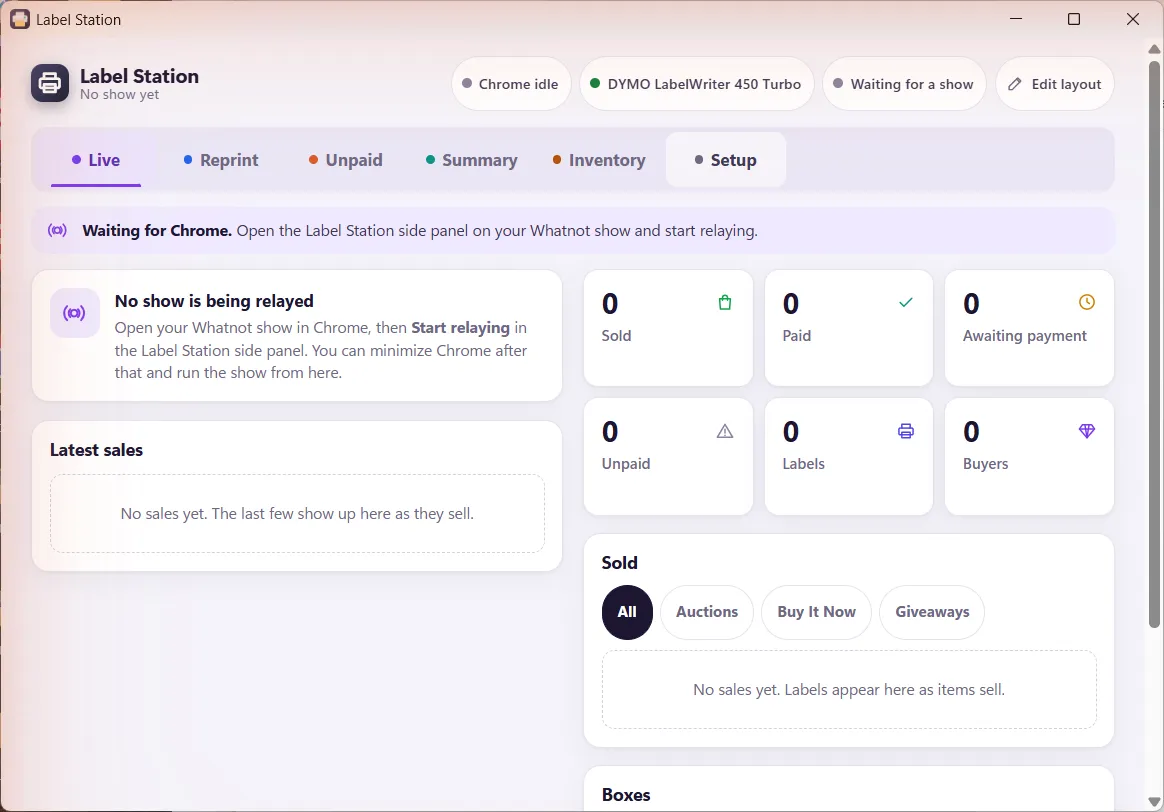
The Label Station window opens on its Live tab. It says it is waiting for Chrome. That is normal; you connect Chrome later.
If something looks different
Section titled “If something looks different”- Windows says “This app has been blocked” and mentions Smart App Control. There is no Run anyway button on that box. See Windows blocks the installer.
- Your antivirus blocks or quarantines the installer. Choose to allow or restore it, then run it again. The installer is unsigned, which some antivirus programs treat with suspicion.
- There is no SmartScreen box at all. Some PCs skip it. Carry on with the licence page.
Where to next
Section titled “Where to next”Still stuck, or is something on this page wrong? Get in touch and Andy will sort it out. Label Station is made by Mood Swings Design. Not affiliated with or endorsed by Whatnot.